Windows 11 has a new feature named Recall. This tool takes a snapshot of your screen every few seconds. It saves these photos so you can find things you’ve seen before. Although this seems helpful, many are worried about their privacy. You might not want your PC recording everything you do.
If you want to keep your data private, you can turn this off. This post shows you how to stop Windows 11 from taking snapshots. We will cover the easiest ways to handle this. We will also look at how these snapshots affect your disk space and speed.
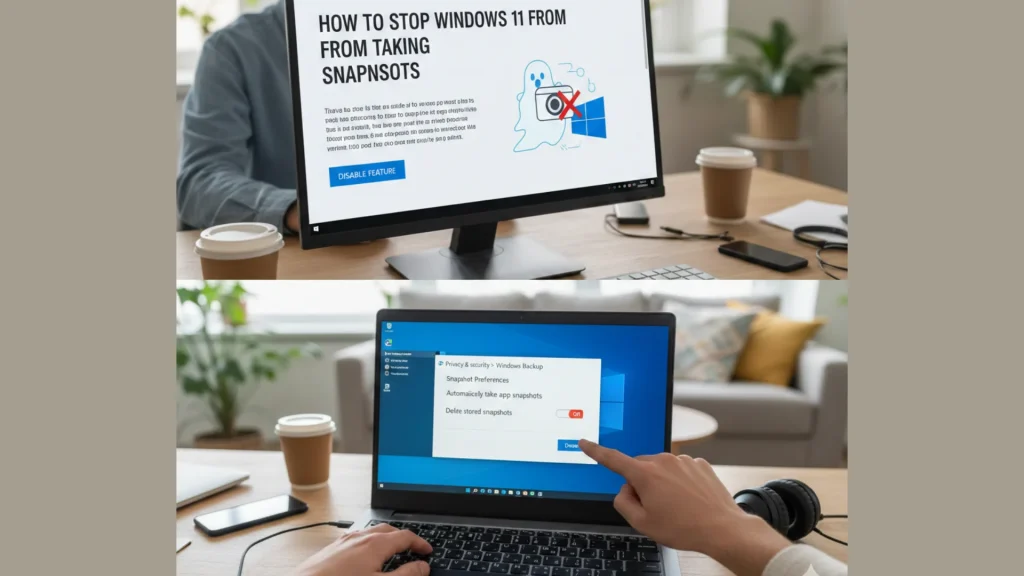
Why Does Windows 11 Take Snapshots?
Microsoft added Recall to help you search your past activity. It uses AI to look through your snapshots. You can find a specific website or a chat from last week. However, these snapshots can capture sensitive info. This includes passwords, bank details, and private emails.
By default, this feature should be opt-in on newer Copilot+ PCs. But updates can change things. Many users prefer to disable it entirely to stay safe. Even if it is not on your PC yet, knowing how to block it is smart. Windows updates often bring new AI tools. These tools sometimes start running without a clear warning.
The Problem with Digital Snapshots
Think of Recall like a person standing behind you. They take a photo of your screen every five seconds. They put those photos in a big box on your desk. Anyone who can sit at your desk can open that box. This is why people call it a security risk. If someone steals your laptop, they can see your entire history. They can see every bill you paid and every private message you sent.
Method 1: Use the Settings App
This is the simplest way to stop the snapshots. Most users should start here. It is the official way to manage your privacy settings.
- Open Settings: Click the Start button and select the gear icon.
- Go to Privacy & Security: Look for this section in the left menu.
- Find Recall & Snapshots: Click on this option in the list.
- Toggle Off: Look for the switch that says “Save snapshots.” Click it to turn it off.
- Delete Old Data: Find the “Delete snapshot” button by scrolling down. This removes the images already saved on your drive.
Once you flip that switch, Windows stops recording your screen. It is like turning off a camera. But the software for the camera is still there. If you want to go deeper, use the next methods.
Method 2: Use Windows Features
If you want to remove this feature completely, try this method. It treats Recall like an alternative app that you don’t need. This can help free up system resources.
- Search for Features: First of all Windows key press and type “Turn Windows features on or off.”
- Open the Tool: Click on the result at the top, it will open a small window.
- Uncheck Recall: Scroll in the list until you see, “Recall”.
- Apply Changes: Remove the tick from the box ahead of it and click OK.
- Restart: Your computer must restart to complete this process.
This method helps to close the background processes. It tells Windows that you do not want to install this “feature”.
Method 3: Group Policy Editor (For Pro and Enterprise)
If you use Windows 11 Pro, you can use Group Policy. It is a powerful tool to make changes in the system. It’s better to block those features so that they don’t automatically restart.
- Open Run: Press the Windows key + R.
- Type the Command: Enter gpedit.msc and hit Enter.
- Navigate Path: Go to Computer Configuration > Administrative Templates > Windows Components > Windows AI.
- Edit Policy: Find the setting called “Allow Recall to be enabled.”
- Disable It: Double-click it and select “Disabled.” Click Apply and then OK.
This blocks the feature at a system level. It is great for office computers or power users. It stops other users on the same PC from turning it back on.
Method 4: Registry Editor (For Home Users)
Windows 11 Home users don’t have Group Policy. You can use the Registry instead. Be careful here, as wrong changes can hurt your PC. Always back up your files before you edit the Registry.
- Open Registry: Press Windows + R, type regedit, and press Enter.
- Go to Path: Navigate to HKEY_LOCAL_MACHINE\SOFTWARE\Policies\Microsoft\Windows.
- Create Key: Right-click the Windows folder, select New > Key, and name it WindowsAI.
- Create Value: Right-click your new WindowsAI folder. Select New > DWORD (32-bit) Value.
- Name It: Title the value AllowRecallEnablement.
- Set Data: Double-click it and make sure the Value data is 0.
- Reboot: Restart your PC to apply the block.
Method 5: Using Command Prompt (DISM)
For those who use the text command, DISM is a useful tool. Technical experts use this tool to fix Windows’s problems. It can close the features very quickly.
- Open CMD: Type “cmd” in your Start search. Right-click it and choose “Run as administrator.”
- Type the Command: Type DISM /Online /Disable-Feature /FeatureName: Recall and press Enter.
- Wait for Finish: The computer will process the request.
- Restart: Type Y if it asks to restart your computer.
Method 6: Using PowerShell
There’s another way to use a PowerShell command. This command is more modern than prompt.
- Open PowerShell: Search for “PowerShell” and run it as an administrator.
- Run the Script: Type Disable-WindowsOptionalFeature -Online -FeatureName “Recall” -Remove and hit Enter.
- Restart: Restart your PC when the command finishes.
How Snapshots Impact Your PC
You might wonder if these snapshots slow down your computer. The answer is yes. Even though Microsoft says it uses a special chip (the NPU), it still uses resources.
Disk Space Usage
Snapshots are pictures. Even small pictures take up space. If Windows takes a photo every few seconds, your hard drive fills up.
- Small Drives: If you have a 256GB drive, Recall might take 25GB. That is a lot of space for games or work files.
- Large Drives: On a 1TB drive, it could take over 100GB.
- Old Files: Once the space is full, Windows deletes the oldest photos. But you are still losing that space.
System Performance
Your PC has to work to take a snapshot. It has to save that file and use AI to “read” it.
- Read/Write Speeds: Constant saving can slow down your SSD.
- Battery Life: On laptops, the extra work can drain your battery faster.
- Background Lag: Some users feel a tiny bit of lag when the system captures a screen.
How to Check if Snapshots Are Stopped
You want to be sure your privacy is safe. You can check the status easily.
- Check the System Tray: Look for the Recall icon near your clock. If it has a slash through it, it is paused or off.
- Search for Recall: Open the Start menu and type “Recall.” If the app does not open or says it is disabled, you are successful.
- Check Disk Space: Snapshots take up space. If your “System” storage stops growing, the recording has likely ended.
Privacy Tips for Windows 11
Stopping snapshots is a great first step. You can do more to protect your digital life. Windows has many settings that share your data.
- Filter Apps: In the Recall settings, you can tell Windows to ignore specific apps. This is helpful if you only want to hide your bank app but keep the rest.
- Use Incognito Mode: Most browsers stop Recall from taking snapshots when you use private tabs. This is a built-in safety rule.
- Manage Permissions: Check the Privacy and Security tab on a regular basis. See which apps have access to your camera or microphone.
- Diagnostic Data: Turn off “Optional diagnostic data” by going to Settings. This will cause your PC to stop sending additional information to Microsoft.
- Tailored Experiences: Turn this off to stop Windows from using your data to show you ads.
Security Concerns and Data Safety
Many experts worry about “local” storage. Microsoft says the photos stay on your PC. But local storage is not always safe.
- Malware Risks: If you get a virus, the virus can read your snapshot database. It could steal every password you ever typed.
- Shared Computers: If you share a PC with a family member, they might see your snapshots.
- Remote Access: If a tech support scammer gets access to your PC, they can see your whole life in seconds.
By disabling snapshots, you remove this “treasure map” for hackers. It makes your computer much safer.
Summary
You should have total control over your computer. Microsoft designed Recall to be helpful, but it is not for everyone. Taking snapshots of your screen creates a big security risk. If a hacker gets into your PC, they could see months of your history in images.
Turning off snapshots is fast. Whether you use the Settings menu or the Registry, you can stop the recording today. This keeps your private moments private. Your passwords and personal chats belong to you, not a local database. Check your settings after every big Windows update. Sometimes new updates reset your choices. Staying alert is the best way to keep your PC secure. Remember, your privacy is worth the five minutes it takes to change these settings.